


Use the device record as an operating reference
The Devices area in Lexoh brings together equipment identity, reported conditions and the operations available to your role. Use it to connect a software record with the physical camera, reader, kiosk, barrier or other integrated equipment at the site. This guide covers routine operation; for initial setup, use the installation guide and the exact equipment instructions.
A connected device is not necessarily a working lane. Read the communication timestamp, device feedback and current faults together, then verify the relevant site function. A command request, its acknowledgement and the observed result are separate pieces of evidence.
Available fields, views and commands depend on the installed version and integration. The instructions below describe what to verify using the controls your installation provides.
Confirm the site and your permissions
- Open Devices in the administration interface and select the intended site or company scope. Confirm that you are using the correct environment before acting.
- Locate the equipment record by its name or reference. Check active filters and the current page if it does not appear; an offline device can still have a record.
- Confirm which operations your role permits. Viewing records, changing settings and controlling equipment are distinct responsibilities; access to one does not establish permission for all three.
- Before editing or sending a command, compare the record with the physical location, equipment label and lane direction. Request help from the site administrator if that identity cannot be established.
Read the list without losing device context
Each row represents a device record within the selected scope. Similar names can refer to different entrances, so compare the record reference, location and model before opening details. The list may show only part of a long value; open the record when necessary to read it in full.
Use the text label and update time alongside any colour or icon. On a small screen, confirm the complete device name and command label before acting. A column’s position or a familiar icon is insufficient to identify the target.
If another layout is available, check that the same filters and site scope remain applied after switching. Do not assume that a change of view refreshes stale telemetry.
Identify the equipment and its reported signals
Identity and location
Compare the record reference, descriptive name, type, manufacturer, exact model and serial number where available. Use a name such as “North entrance barrier” instead of “Device 1”. A friendly name does not replace the record reference or physical equipment label.
Network information
The Internet Protocol (IP) address, hostname, port and server destination describe the configured connection. A Media Access Control (MAC) address identifies a network interface; verify the actual interface when equipment has more than one. Record the approved addressing scheme without publishing credentials or network secrets.
Zone and direction
Confirm the assigned zone and whether the device serves entry, exit or both. Its hardware type alone does not establish lane direction. Check the actual counting and permission relationships when assignments change.
Communication, state and presence
Communication status concerns contact with the integration. A device state may describe a position or fault. A presence input describes the detector assigned to that signal, not whether the equipment is still physically installed. Read each with its source and update time.
Printer and other model-specific feedback
Check the labels supported by the installed equipment. A printer’s ready signal does not prove a ticket or receipt printed correctly. Use an approved test print after service and inspect the complete output.
Narrow the list and verify the result
Illustrative task: to investigate an entrance outage, begin with the relevant zone and device types. Review disconnected equipment and connected equipment reporting a fault; an offline-only filter can miss an operational failure.
- Start with the intended site and clear filters that are no longer relevant using the available controls. Note the starting record count.
- Apply the criteria offered by your version, such as type, zone or communication state. Confirm whether combined criteria narrow or broaden the result.
- For a sortable column, select the intended order and check its direction. Do not infer newest-first ordering from the row position alone.
- Open a matching record and verify that it actually meets the criteria. If a known device is absent, inspect permissions, scope and filters before assuming it was removed.
Check the scope across pages and exports
Use the available page-size and navigation controls to review the result set. Distinguish the number visible on the current page from the total matching the active filters. A shorter page does not necessarily mean records were deleted.
Before a group operation, inspect the complete selection, including any retained across pages or filter changes. Confirm whether “select all” means the current page, the filtered result or another scope. Proceed only when the intended targets are clear.
When export is available, verify the included devices, fields, filters and time zone after opening the file. Preserve identifiers and leading zeros. Share only the records needed for the operational or support task.
Distinguish connectivity from equipment function
Status labels describe evidence reported by the integration. Their exact names and colours vary. The examples below show how to interpret that evidence without treating a connection indicator as proof of lane operation.
| Reported evidence | What to verify next |
|---|---|
| Connected with a recent update | Read faults and device feedback; verify the required site function. |
| Offline or last update is stale | Check the last communication time and follow the local outage procedure. |
| Command accepted | Check the resulting device state and physical outcome. |
| Presence input inactive | Confirm the detector, input meaning and freshness; do not infer that the entire lane is clear. |
| Unknown or missing state | Establish what feedback is available before drawing an operational conclusion. |
Conflicting signals
If a recent connection indicator accompanies an old position reading, keep the two timestamps separate. Check the source and integration before repeating a command. Escalate when the lane cannot be verified through the approved operating procedure.
Return from an outage
Check when communication resumed, whether queued events have arrived and whether the recorded settings match the intended configuration. Verify the site function before treating the incident as resolved.
Verify the target before issuing a command
Only authorized operators should use equipment controls under the site’s operating procedure. Confirm the device, location, lane direction, latest feedback and expected effect first. If the target or physical conditions cannot be verified, use the local assistance procedure.
Open, close or hold open
Use only the command supported by the installed device. Before a close request, confirm the lane conditions required by the site procedure. For a hold-open command, establish its duration and how normal access control resumes. Never bypass a protection input to complete a command.
Restart software or reboot hardware
Identify the actual command scope and plan the interruption. A software restart and a hardware reboot may affect different components. Verify recovery, settings, events and the operating function afterward; do not assume a successful restart clears the original fault.
Group changes
Review every selected target and the supported scope. Record existing settings and the recovery method before applying an approved change. Verify each device’s receipt and result; one successful response does not prove the entire group completed.
Record the outcome
Keep the operator, time, target, intended action, acknowledgement and observed result together. If a request times out, establish whether it executed before retrying. A timeout is not proof that nothing happened.
Review details, events and configuration together
Events and entry records
Check time zone, filters, permissions, retention and synchronization when reading history. No visible entry is not proof that no passage occurred. Distinguish credential authorization, physical passage and a count change using the event sources actually configured.
Camera and screen feedback
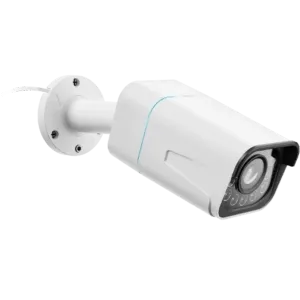
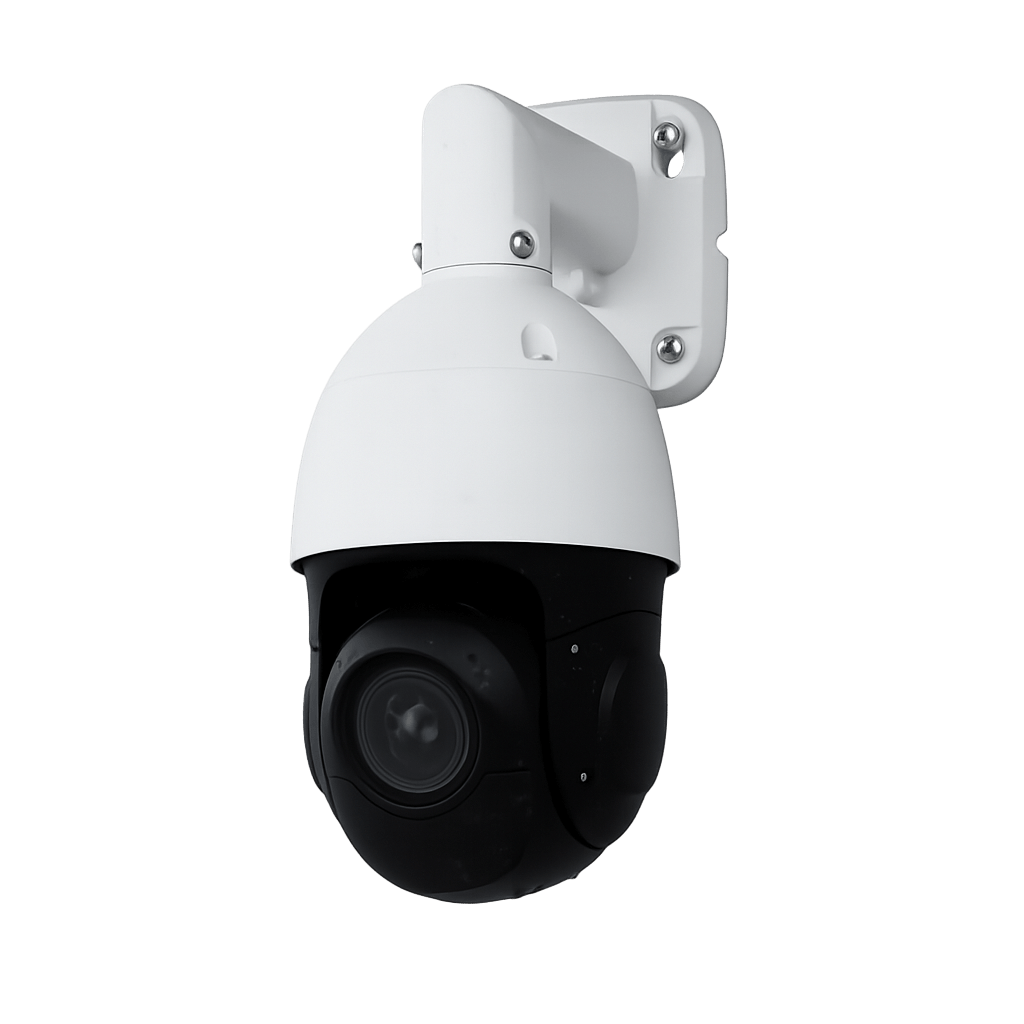
Use the assigned camera feed or remote screen only where supported. Confirm the timestamp and field of view. A view outside the relevant lane area cannot establish its condition. Camera functions depend on the integration and model; do not infer detection, movement or masking controls from the presence of a feed.
Barrier configuration
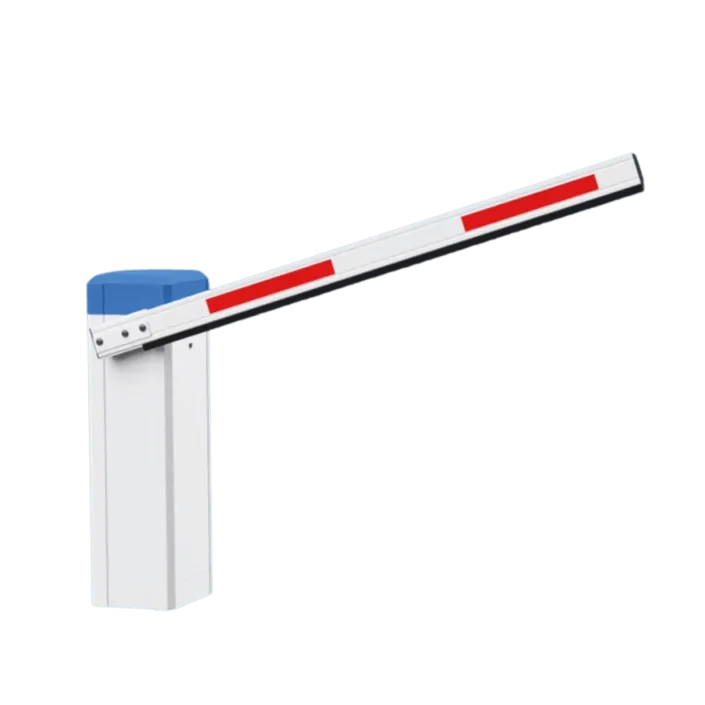
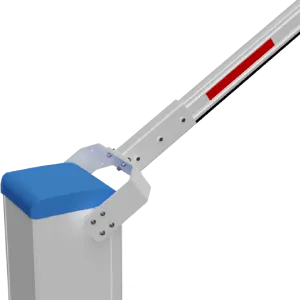
Match the driver to the installed equipment. Lexoh supplies ELKA, AutomaticSystems and PivinDrapeau barriers. Modbus and relay options describe interfaces, not manufacturers. Have the installer verify timing and signal settings against the exact model’s instructions; software settings do not change its required supply voltage.
Readers, displays and printers
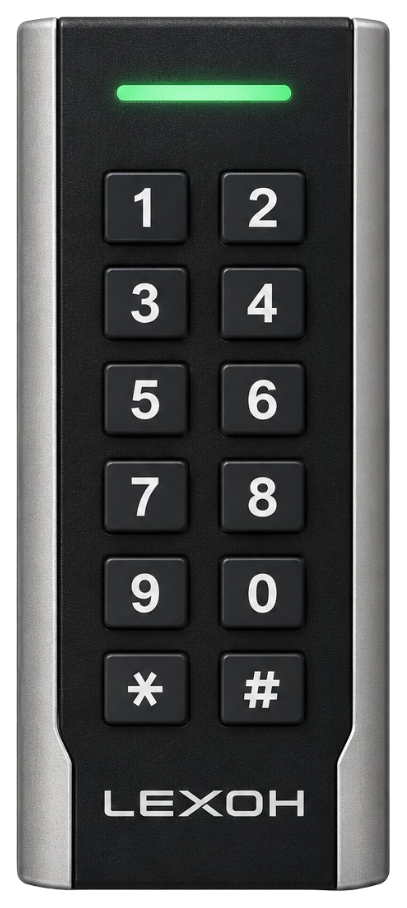
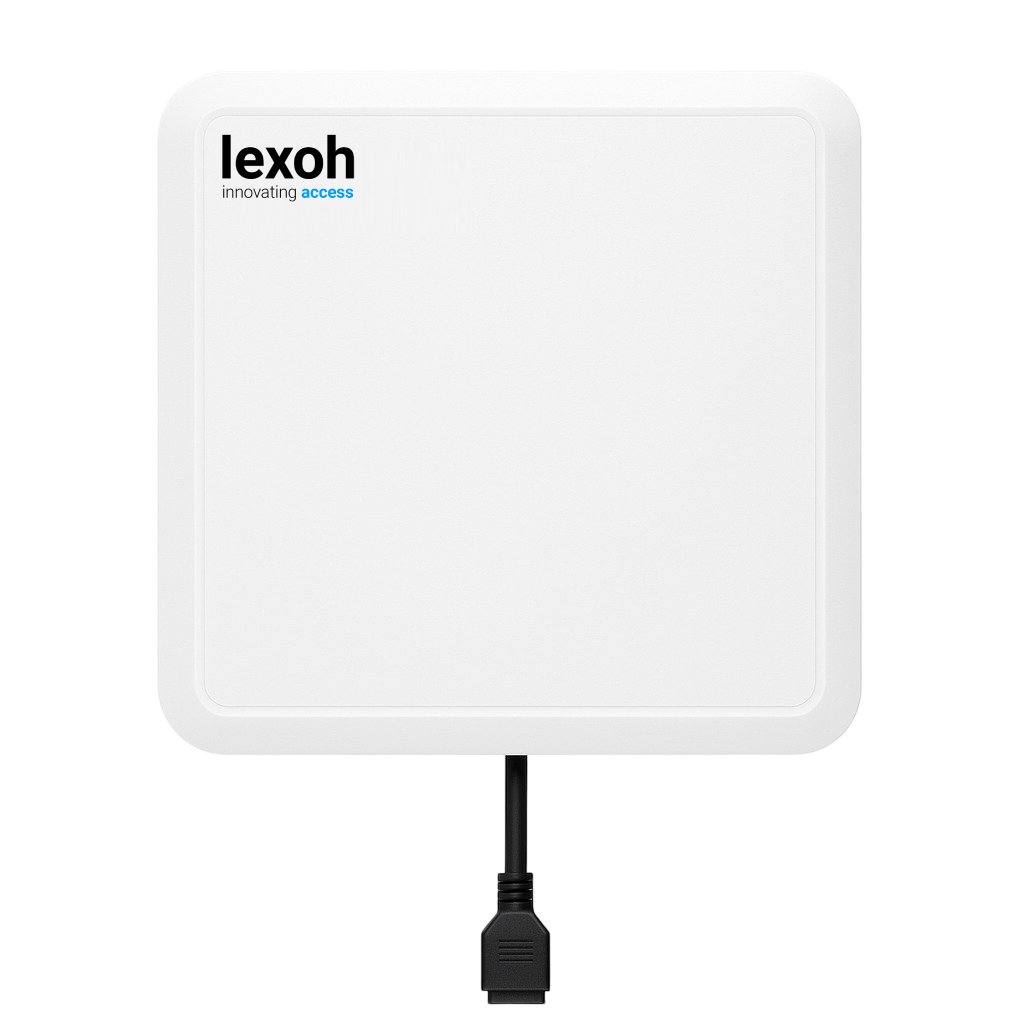
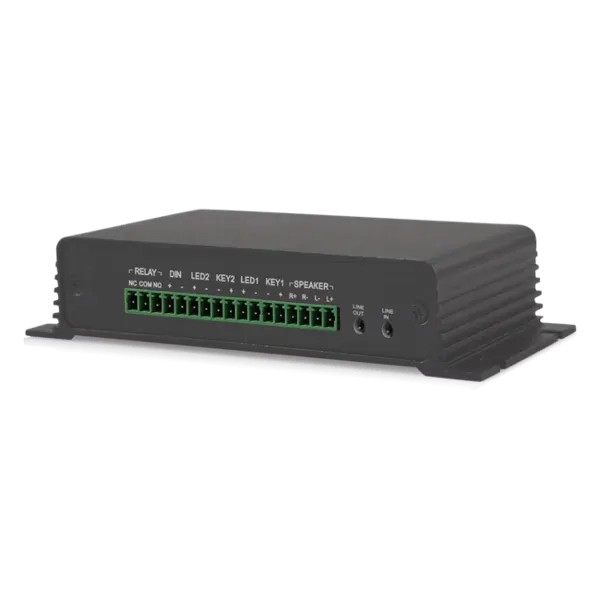
Match the credential format and communication interface to the reader. For Lexoh UHF9DBI, use the selected supported interface and supplied wiring or network configuration. Choose the supported screen mode and actual printer feedback, then test a complete intended interaction.
Sensors and counting
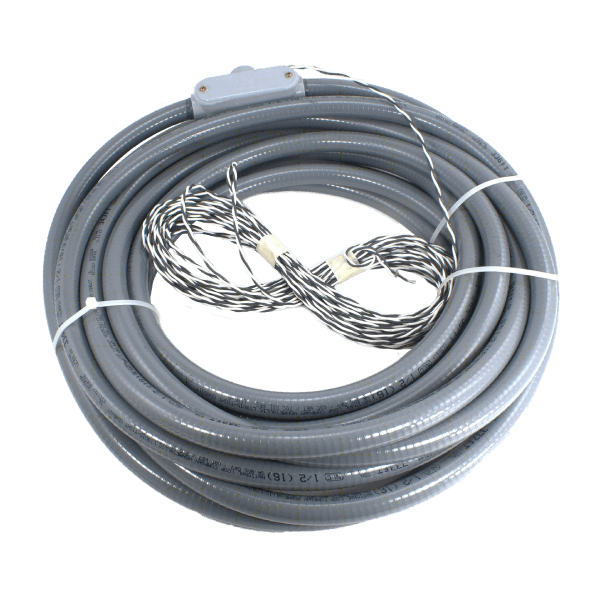
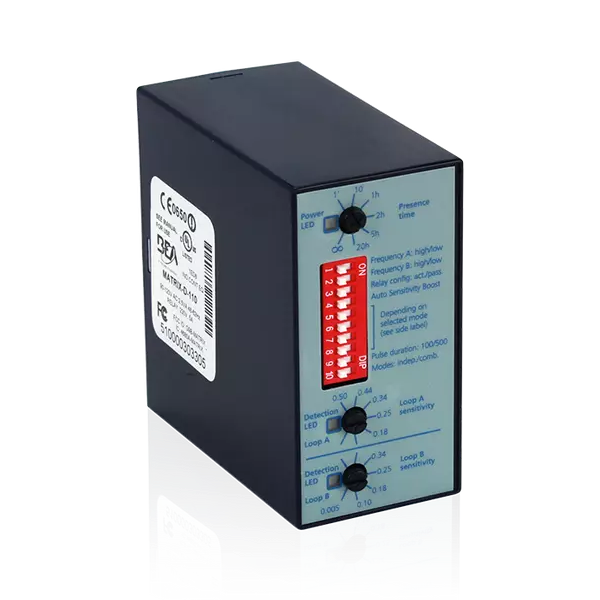
Identify the detector behind each presence, protection or passage input and its normal and active meanings. Confirm which event changes occupancy and how entry, exit or transfer direction is applied. A stale or missing signal is not an all-clear indication.
Network changes and offline operation
Follow the approved network and server configuration, with a recovery plan before changing remote connectivity. Test access decisions, cached permissions, event synchronization and recovery for the actual deployment before relying on disconnected operation.
Keep a usable maintenance and acceptance record
- Maintain the equipment name, location, model, serial number, installation details and responsible contact. Keep relevant warranty and service records available to the authorized team.
- Record the firmware and software versions actually observed. For an update, verify model compatibility, the approved procedure and recovery options before scheduling it.
- Review faults and communication gaps according to the site’s operational impact and monitoring procedure. A device’s importance depends on the function it serves, not just the colour of its status.
- After an approved change, verify configuration receipt, sensor feedback and the complete affected workflow. Include the relevant allowed and refused access cases where permissions changed.
- Document the event references, actual results and unresolved faults. Close the maintenance task only when its acceptance checks are met or the remaining issue is explicitly handed over.