


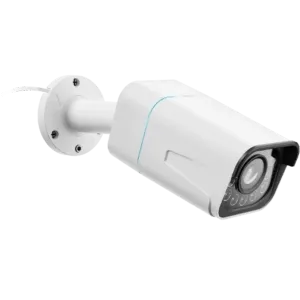
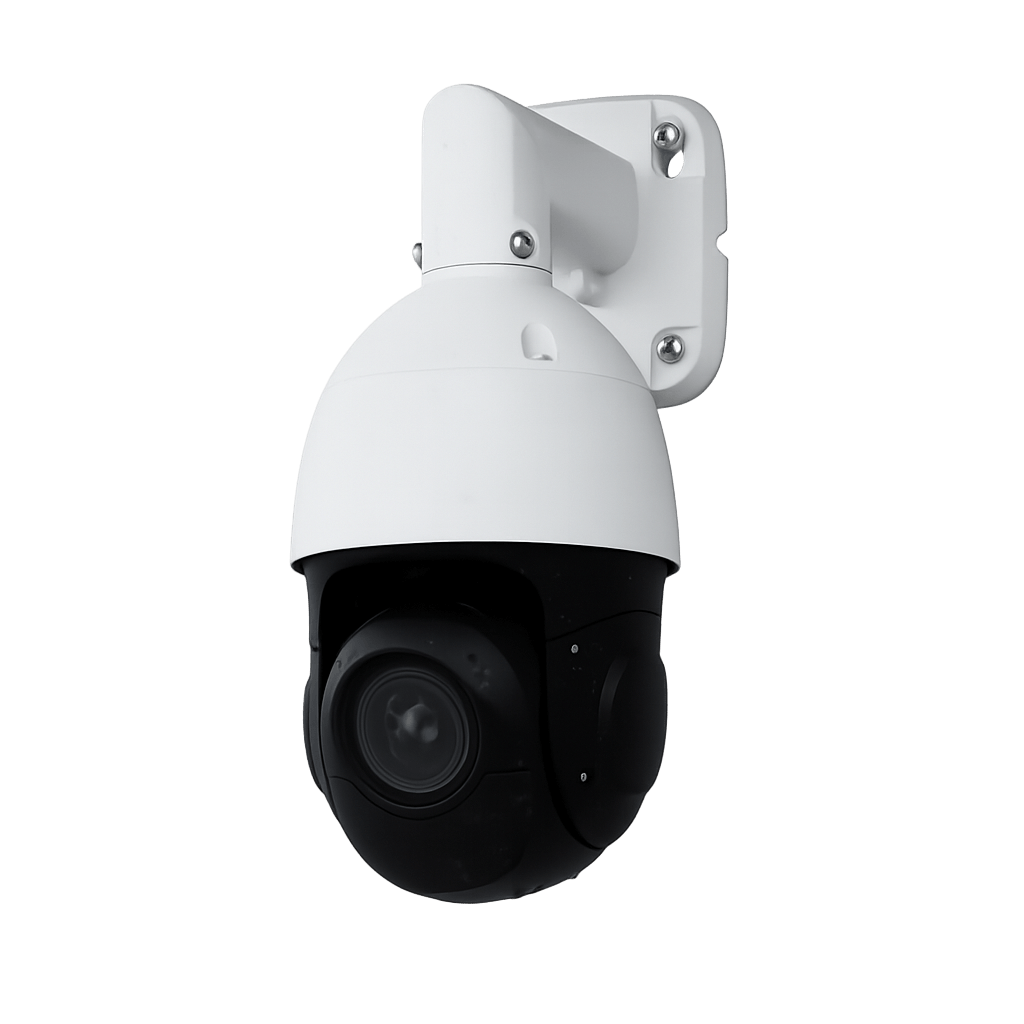
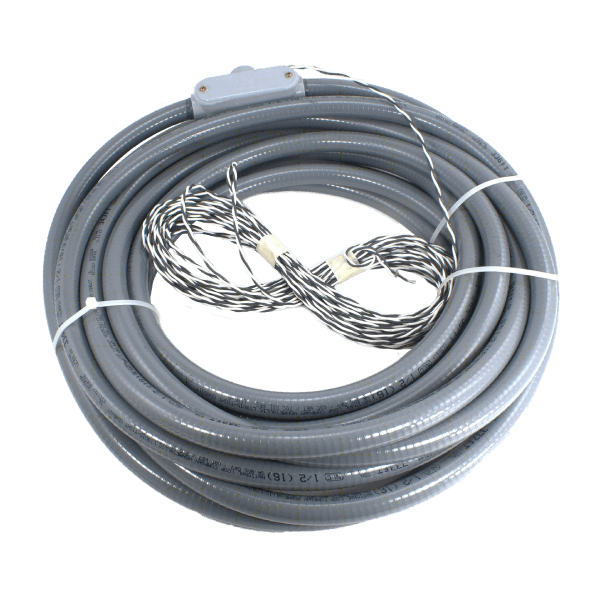
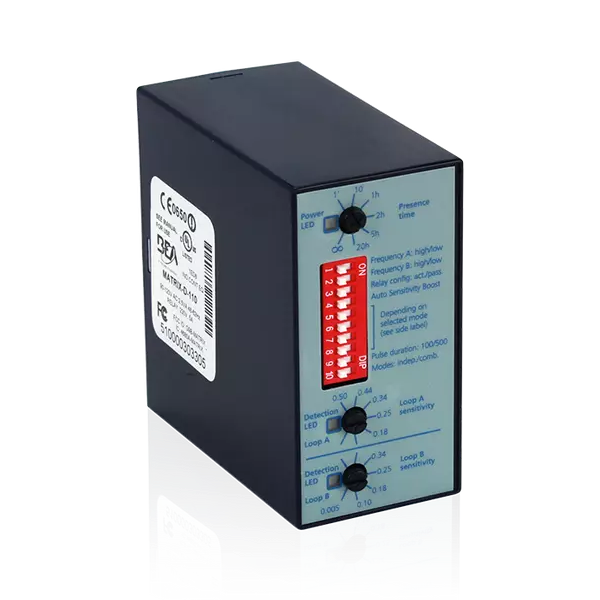
Identify the issue and prepare the next check
Use this guide to separate a device, network, permission or integration problem. Record the site, equipment model, time and last successful operation before changing settings. Electrical work and moving barriers require a qualified installer and the model’s service procedure.
Quick Diagnostic Steps
- Check device status: Does the device appear online in the dashboard?
- Verify Power: Compare visible status indicators with the equipment manual; an illuminated LED alone does not prove the supply is correct.
- Test the Connection: Check the device address and the service it uses. A blocked ping does not prove the device is offline.
- Review Logs: Any error messages in event history?
- Recent Changes: Was firmware updated or configuration changed?
Device Connection Issues
Problem: Device Shows Offline
Possible Causes:
- No network connectivity
- Power loss or failure
- Firewall blocking communication
- DNS resolution failure
Solutions:
- Check physical network cable connection
- Compare the visible power indicators with the model’s documented states; have the installer investigate an abnormal or missing indication.
- Test the documented service from the authorized network; use ping only as an additional check if ICMP is allowed.
- Compare firewall rules with the approved destination, port and protocol list for this deployment.
- Resolve the actual hostname supplied for this site; use its documented DNS and gateway settings.
- If a restart is approved, preserve the logs and follow the model’s shutdown procedure during a controlled service window.
- Escalate a persistent failure with the model and error details. A factory reset requires a configuration backup, recovery plan and the model-specific procedure.
Problem: Device Connects Then Disconnects
Possible Causes:
- Unstable network connection
- IP address conflict
- Firmware compatibility issue
Solutions:
- Check DHCP lease changes against the site’s addressing plan; use a reservation or static address only as assigned by the network administrator.
- Check for IP conflicts with other devices on network
- Record firmware versions and confirm an approved compatible update with the installer before applying it.
- Correlate disconnect times with DHCP, switch and power logs before changing network settings.
- Check for network loops or broadcast storms
Access Control Issues
Problem: Card Not Working
Solutions:
- Verify card is registered in the system (Cards page)
- Check card status is Active, not Inactive or Suspended
- Confirm card has access to the specific zone/door
- Check card schedule allows access at current time
- Compare with an authorized test credential for the same door and schedule; record the reader event and denial reason.
- Inspect the card and reader for damage; use only the cleaning method approved for their materials.
- Replace a damaged credential through the approved enrollment process and revoke the old one. Re-enrollment does not repair a damaged RFID chip or antenna.
Problem: Door Won't Unlock
Solutions:
- Read the controller and lock status without opening energized equipment. Have a qualified technician verify the specified supply if needed.
- Have an authorized operator test the open command while someone confirms the door area is clear.
- Compare the command, controller output and door-contact events; a relay click alone does not confirm that the lock released.
- Ask the installer to inspect lock wiring using the approved diagram and electrical isolation procedure.
- Compare the configured release duration with the commissioned setting before requesting a change.
- Record whether the fault affects one door or several, and whether it occurs with both a credential and an authorized opening command.
- Have the installer assess a mechanical failure and restore the approved locking and emergency-egress behavior.
Problem: Door Stays Unlocked
Solutions:
- Review the active unlock schedule, hold-open command and emergency inputs.
- Review access events for repeated unlock commands
- Have the installer check relay and lock behavior against the approved wiring diagram.
- Check for door sensor malfunction (door status unknown)
- Follow the site’s security procedure and contact the installer. Do not override emergency inputs or restart a controller without assessing the effect on doors.
Camera Issues
Problem: No Video Feed
Solutions:
- Check the camera’s documented power indicators or the managed PoE port status, where available.
- Check network cable connection (both ends)
- Use the camera’s documented management address from the authorized network, with HTTPS where supported.
- Compare the configured stream address and protocol with those documented for the installed camera and video system.
- Check camera credentials (username/password)
- Check firmware compatibility with the installed video system before updating.
- If approved, restart the camera using its documented procedure and confirm recording resumes afterward.
Problem: Poor Video Quality
Solutions:
- Inspect the exposed optical surface for dirt or condensation; follow the model’s cleaning instructions for its lens or protective cover.
- Check focus at the required subject distance; adjust focus or zoom only if the model provides those controls.
- Compare bitrate with the accepted image-quality target and available network and storage capacity.
- Test the supported resolution against the required detail at the subject’s actual distance.
- Verify adequate lighting in camera field of view
- Check network bandwidth is sufficient for stream
- Compare available exposure and wide dynamic range settings in the actual lighting conditions; preserve the previous settings.
Problem: Recording Not Working
Solutions:
- Identify which camera, recorder or server manages recording, then check that the expected channel is enabled there.
- Check storage location has available space
- Verify recording schedule is configured correctly
- Run an approved test for the configured continuous or event-triggered recording mode, then verify playback at the recorded time.
- Check NVR/storage server is online
- Compare camera and recording-service logs for the same time window, including storage or write errors.
Parking System Issues
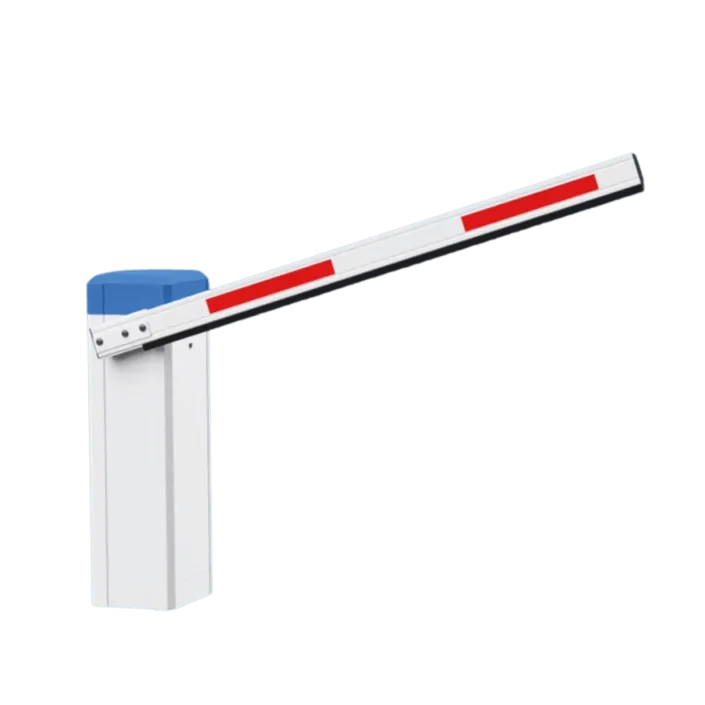
Problem: Barrier Won't Open
Solutions:
- Keep people and vehicles clear of the moving area; read visible status indicators and the model’s error display.
- An authorized operator may test the opening command only under the site’s controlled testing procedure.
- Inspect for visible obstruction without entering the movement area or bypassing safety sensors.
- Record the safety-input status and have the installer diagnose a persistent fault.
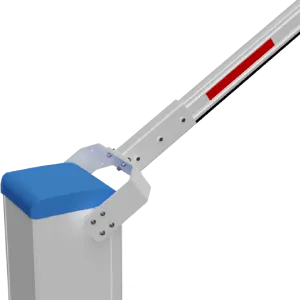
- Record visible arm damage or misalignment for the installer without entering the movement area.
- Review barrier event logs for error codes
- Use the manufacturer’s fault-recovery procedure with the installer; do not use a power cycle as a substitute for diagnosing a safety fault.
Problem: Payment Not Processing
Solutions:
- Verify payment terminal is online in dashboard
- Check terminal has network connectivity
- Check the transaction status with the processor before retrying to avoid duplicate charges. Use the processor’s approved test procedure.
- Verify payment processor configuration is correct
- Check the documented terminal or processor authentication status without sharing payment credentials.
- Review transaction logs for specific error codes
API & Integration Issues
Problem: API Authentication or Permission Failure
Solutions:
- Read the HTTP status together with success and error in the JSON response
- Send a valid session token in SessionID or Authorization: Bearer
- Check the account role and complete MFA when enabled
- If the session is no longer valid, sign in again using the authentication guide
- Verify the server address, HTTP method and route in the API reference
Problem: API Requests Are Slow or Temporarily Unavailable
Solutions:
- Reduce request frequency and concurrent requests
- Retry transient read failures with a delay. For commands or changes, verify whether the first request took effect before repeating it; resolve authentication and validation errors first.
- Use a suitable page_limit and the filters supported by the endpoint
- Avoid repeating requests for unchanged data when the application can reuse it
- Share the request time, route and sanitized error with support if the problem persists
Problem: An Integration Is Missing Events
Solutions:
- Use POST /v1/event/list to retrieve the event history
- Check that the session account has can_view_events permission
- Review JSON filters and inspect success and error in the response
- Use next_cursor to retrieve older batches with the same filters
- Start again with cursor_id:0 for recent activity and deduplicate records by id
- Review the API event-integration guide for the available workflow
Performance Issues
Problem: Slow Dashboard Loading
Solutions:
- Compare a fresh browser session before clearing stored site data, which may sign you out.
- Reduce date range filter to show less data
- Close unused live video views and compare loading time while keeping the other conditions unchanged.
- Record the browser and version; compare the same task with a browser supported by the deployed application.
- Check internet connection speed
Problem: High Bandwidth Usage
Solutions:
- Measure which streams or transfers consume bandwidth before reducing video quality.
- Limit number of simultaneous video streams
- Use a codec supported by the camera, recorder and viewing clients; verify playback before changing the recording profile.
- Review the approved recording architecture and retention needs with the installer before changing storage location.
- Schedule large data transfers during off-hours
Diagnostic Tools
Network Testing
Check ICMP reachability if allowed; this does not verify the application service
ping [device-ip]Trace the network path (Windows command)
tracert [device-ip]Test the documented TCP port (Windows PowerShell; replace placeholders)
Test-NetConnection -ComputerName [device-ip] -Port [documented-port]Resolve the actual deployment hostname, not a wildcard
nslookup [deployment-hostname]Log Collection
Send relevant evidence through the agreed support channel. Remove passwords, tokens, payment-card data and unrelated personal information before sharing:
- Site, equipment model, firmware version and event logs covering the incident
- Error text, timestamp and time zone, with the last successful operation
- Relevant network topology and recent configuration changes
- Sanitized browser errors or request details requested by support
- Screenshots showing the error without exposing credentials or personal records