

Understand what alert history establishes
Lexoh recorded alerts help operators investigate reported equipment and site conditions. Use the alert history to locate records, compare times and identify the affected device. Available fields, search controls, export formats and retained history depend on your installed version, permissions and configuration.
An alert record shows what was recorded at a particular stage of reporting. It does not by itself establish that a notification reached someone, that the condition is still present or that equipment has recovered. Check the current device condition and the incident follow-up separately.
This guide covers recorded history. To change triggers, recipients or notification behavior, use the alert-configuration guide. Several records can relate to one incident; counting alerts is not the same as counting failures or measuring downtime.
Establish the site and viewing scope
- Open the recorded-alerts view with an authorized account. Confirm the selected site or organization before interpreting the results.
- Identify the available search, date and device controls, the result list and any refresh or export action. Their position and labels can vary by version and screen size.
- Record the active filters, sort order and displayed total, where available. Check whether results have finished loading and whether an error or permission message is present.
- Check when the list was last refreshed. Do not assume it updates continuously or that an old browser tab represents the current record set.
- If an expected record is missing, verify scope, filters, time zone and retained history before concluding that no condition occurred.
Make searches reproducible
Start with a known device reference or distinctive text from an alert. Note the exact search term and check which fields your version searches. A text box may not search every detail field, and partial-word or case-insensitive matching should be verified with a known record.
Apply one filter at a time and compare the results. A search for “error” may match message text without selecting a severity category. Similarly, a device name can be shared by more than one device; use its stable reference where available.
If no result appears, clear the text search while keeping a known period, then reintroduce the device filter and search term separately. Confirm whether each control applies automatically or requires an action. Record the effective combination used for the investigation.
Before relying on a bookmarked or shared address, reopen it and confirm that the same filters and scope return. Do not assume a URL preserves the search or gives another account access to the same records.
Define the period and timestamp meaning
Record the time zone and determine what the displayed timestamp represents: source occurrence, alert recording or another processing stage. A notification’s receipt time can be later. Compare like-for-like times when investigating delays or correlating a camera observation.
Use an explicit start and end. Confirm the screen’s date format and whether boundaries include the entire selected day or a specific time. Check records near each boundary; an empty date field does not prove that all retained history is included.
For seven calendar dates ending September 30, 2026, the inclusive date range is September 24–30. September 23–30 covers eight calendar dates. A rolling 168-hour period is a different definition and needs a reference time and time zone.
If the start is later than the end, correct the selection and apply it again. Do not rely on automatic swapping. Retention and access limits can restrict earlier records even when the date control permits selecting them.
| Observed time | What it establishes |
|---|---|
| 10:00 — source occurrence | The source reports the condition at this time, if that is the timestamp’s defined meaning. |
| 10:02 — alert recorded | The record appears at a later processing stage. The two-minute difference alone does not identify its cause. |
| 10:05 — notification received | Receipt follows recording by three minutes in this example. This is separate evidence from the alert list. |
| 10:12 — operation checked | A documented equipment check can establish the observed condition then; receipt or acknowledgement alone cannot. |
Identify the affected equipment
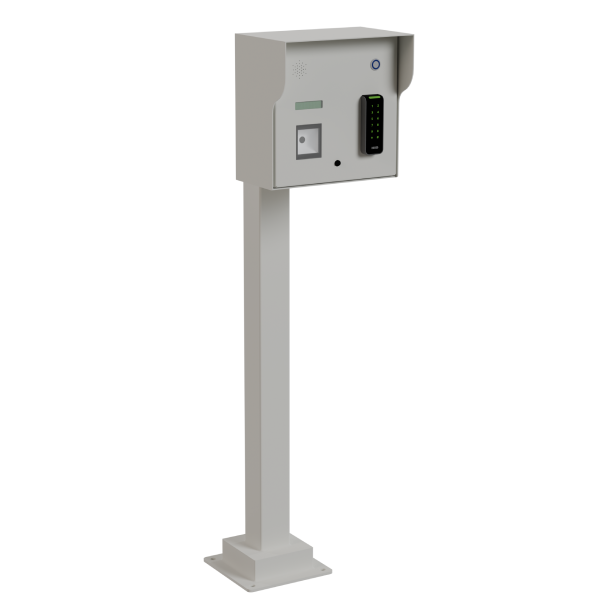
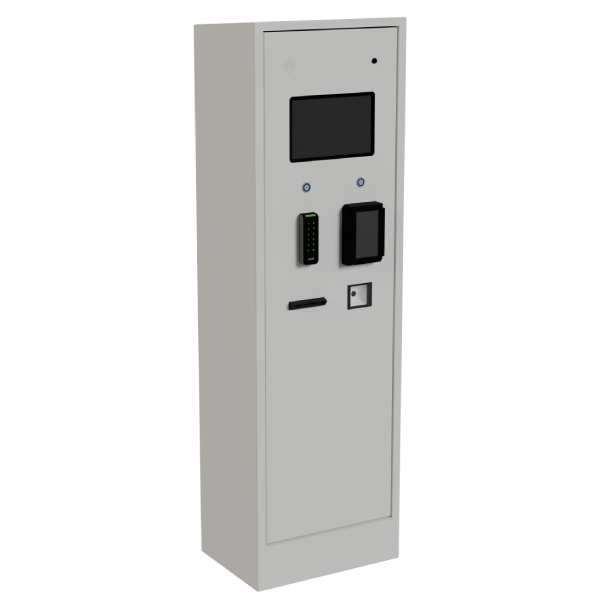
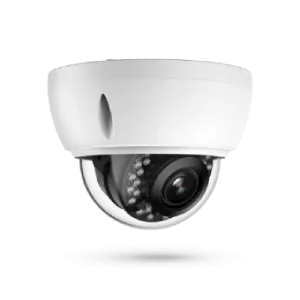
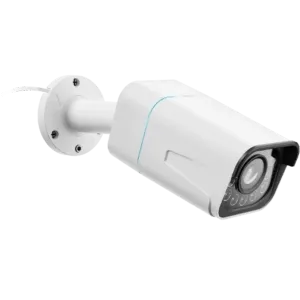
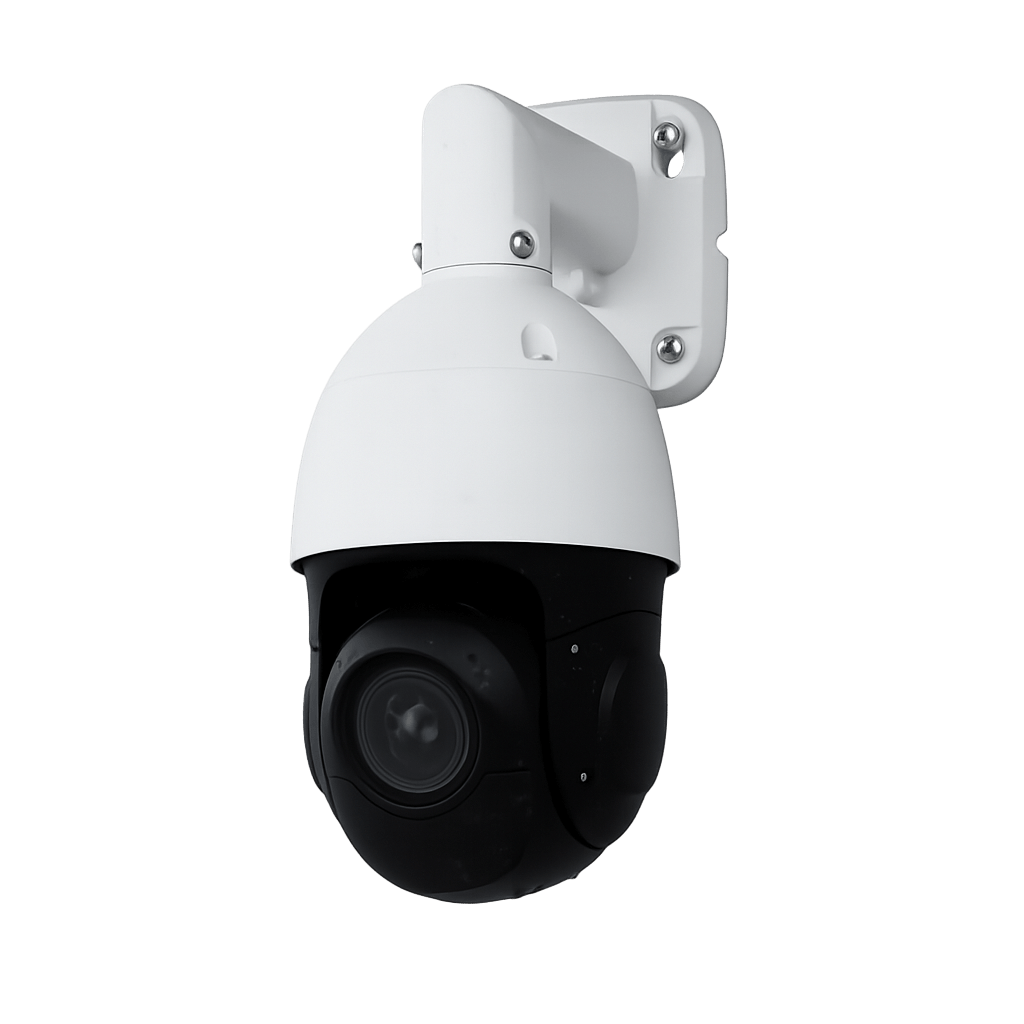
Select the exact device and confirm its site, location and reference. Match the record to the installed reader, controller, camera, kiosk or payment terminal before planning an intervention. Names and locations may have changed since the recorded event.
A missing device in a filter is not proof that it has no alerts. Check account scope, selected site, the period, archived equipment and how your version populates the list. Where needed, ask an authorized administrator to verify the device reference.
When combining device and date filters, confirm whether the list includes only records meeting both conditions. If multiple devices can be selected, verify how that selection is combined. Use a known record to check the result rather than assuming the filter logic.
Read each result in context
Keep the sort direction visible during review. Record timestamps and stable references rather than treating row positions as identifiers. If a value is absent, leave it unknown instead of reconstructing it from a severity color or message wording.
Reference and message
Keep the alert reference, device reference and exact message together. Similar wording or repeated rows may represent repeated reports of one condition, distinct transitions or different devices.
Severity
Interpret the displayed severity with the actual service impact and the site response procedure. A label does not establish a universal response deadline or guarantee how notifications were routed.
State and follow-up
Distinguish a record’s workflow state, such as an acknowledgement where supported, from the equipment’s reported state. Acknowledgement indicates receipt or handling under that workflow; it does not prove repair.
No matching results
Check loading errors, permissions, time boundaries and active filters. An empty result set does not establish that the equipment was healthy or that reporting was operating throughout the period.
Document investigation and resolution
An alert-history review does not require changing an operating rule or moving equipment. Use the approved operational procedure for any intervention. Include relevant details in the service record without copying unrelated personal information.
- Open the available detail view or inspect the visible record. Preserve its reference, device, message, timestamp meaning and time zone.
- Compare the report with related records and the approved current-status checks. Identify expected maintenance, continuing conditions and separate events before grouping them as an incident.
- Assign follow-up through the site’s actual process. Use notes, assignment or acknowledgement controls only where your version provides them; otherwise record the follow-up in the approved service system.
- Document the observation, action, responsible person and verification time. Keep a received notification, an acknowledged record and a confirmed recovery as separate facts.
- Before closing the incident, verify the affected service and any required recovery record. If evidence is incomplete, record what remains unresolved and who will check it.
Verify the exported dataset
If export is available to your account, set and record the required scope before starting. Use the format offered by your version; this guide does not assume a fixed spreadsheet format, filename or set of columns.
Confirm whether export includes the visible page, selected records or all matching results. An export button alone does not establish its scope. Large or changing lists may need a defined cutoff and a verified export procedure.
- Record the site, account scope, filters, sort order, time zone and export time alongside the file.
- Open the file and check its headers and row count. Compare known record references and the earliest and latest timestamps with the intended period.
- Check whether dates, identifiers and message text retain their meaning when opened in the analysis tool. Preserve leading zeros and distinguish empty values from zero.
- Keep the original export unchanged and perform sorting or calculations in a working copy. Note any excluded rows or transformations.
- Share and retain the file according to the site’s approved access and retention procedure. If the exported scope cannot be confirmed, state that limitation in the incident record.
Keep page size separate from result count
Use the available pagination controls to move through the filtered results. Changing the number of rows displayed changes the view; it does not establish a different total number of matching records. Confirm whether a filter change returns to the first page.
For example, “26–50 of 247” with 25 rows per page means 25 rows are visible on the second page. There are 10 pages in this example; the last contains rows 226–247, or 22 rows. These numbers illustrate pagination, not Lexoh defaults or supported limits.
Row positions can shift when new records arrive or the sort order changes. For a repeatable review, record the cutoff and use stable alert references or a verified export. Do not use page number alone as the incident reference.
When a count, page label or expected row seems inconsistent, check for a loading error, changed filter or refreshed dataset before continuing. Keep the observed discrepancy for support.
Make the follow-up useful to the next operator
- Prioritize by actual service impact, site procedure and the applicable support agreement. This guide does not set universal response times.
- Group related records carefully and preserve their individual references. Alert volume alone does not measure incident frequency, downtime or response quality.
- Record the search and time assumptions with the findings so another authorized operator can reproduce the review.
- Review recurring messages with the alert configuration and equipment records. Investigate their cause before changing thresholds or recipients.
- For support, provide the site, affected device, exact message, record reference, period, time zone and checks already completed. State what you expected and what appeared instead.