


Define the condition and the response
Lexoh alert settings connect supported equipment and site conditions to notifications for operators. Start with the operational event you need to detect, the devices or zones involved, and the person responsible for responding. Available rules, thresholds, channels and controls depend on the installed version and configuration.
Open the alert settings with an authorized account, typically under Settings → Alerts. Check the selected site and current saved values before editing. Use the recorded-alerts guide to investigate history; this page covers configuration and testing.
Keep four stages separate: detecting a condition, recording an alert, delivering a notification and confirming an operator response. Success at one stage does not establish success at the next. Record the intended response and escalation route alongside each important rule.
Check notification settings and recipients
Where push notifications are available, check the application’s notification settings and the receiving device or browser permissions. Confirm that the intended account is signed in and registered to receive notifications. Device notification preferences, focus modes and connectivity can affect what the recipient sees or hears.
Check the scope of each switch: it may control push delivery, an individual alert type or a wider account preference. Do not assume that disabling push also stops email or alert recording. Equally, do not rely on an undocumented exception that always delivers critical alerts to administrators.
For email, verify the intended recipient address and notification preference. Test receipt using the actual account and channel. An address saved in a profile or a notification setting shown as enabled is only part of the delivery path.
- Identify the primary recipient and the person covering absences or shifts.
- Check which sites and alert types each recipient is authorized to view.
- Verify supported delivery channels and any configured schedules or routing rules.
- Send an approved test and confirm receipt with each required recipient.
- Record failures and the alternative contact procedure until delivery is verified.
Set barrier and presence conditions
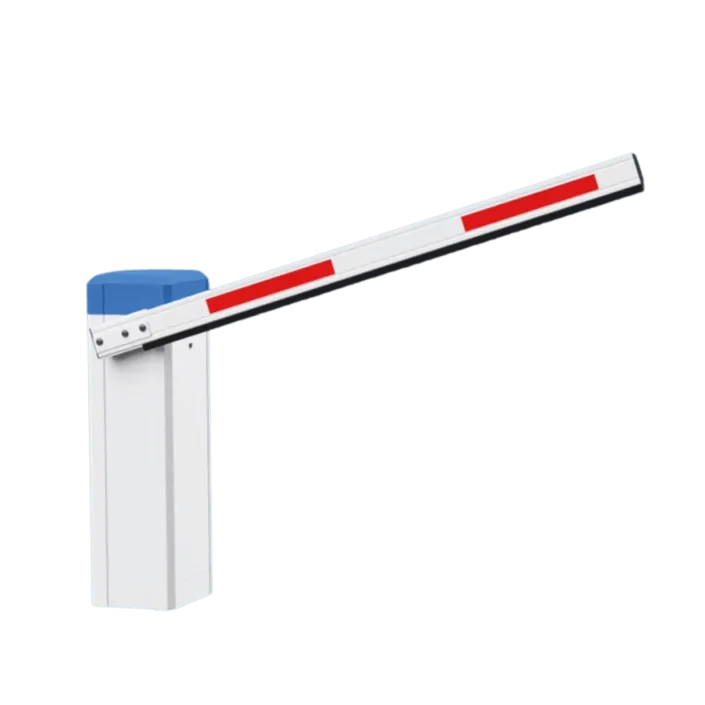
Read the units and allowable values in the actual settings screen. This guide does not prescribe a universal five-minute barrier delay or ten-minute presence delay. Verify how the timer starts, resets and behaves during planned operation before using the rule operationally.
Barrier remains open
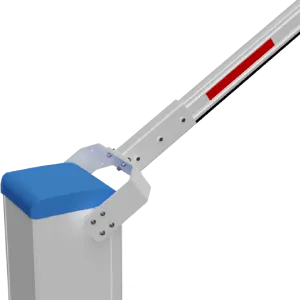
Where this rule is supported, identify the input that reports the open state and the duration required before an alert. Set the duration around the site’s authorized hold-open periods and operating procedure. A commanded opening and a confirmed physical opening are different observations.
Presence remains detected
Identify the detector and area covered. Choose a duration based on the observed lane workflow, including payment, intercom assistance and queues. A continuing detector signal does not establish why a vehicle stopped or prove that the same vehicle remained throughout.
Operator response
Use current device feedback and the approved observation method to assess the lane. Determine whether the condition is expected, a reporting fault or an operating problem. Follow the site procedure before moving a barrier or sending assistance.
Distinguish lost communication from equipment failure
For a supported disconnection rule, establish the expected reporting interval and the configured timeout. Match the rule to the exact reader, controller, camera, kiosk or payment terminal being monitored. Different integrations may report through different paths.
A communication alert identifies missing or interrupted reporting under that rule. It does not identify the cause by itself or prove that every local function stopped. Examine power, network, application status and actual site impact using the approved troubleshooting procedure.
A reconnection notice confirms the reported communication recovery. Verify the equipment function separately before closing the incident. Use observed outage and recovery times for the service record; do not assume the notice includes complete downtime, connection-quality or health measurements.
Set response priorities around the affected service and available fallback. Avoid applying one fixed timeout to every device or treating a short timeout as a guarantee of immediate notification.
Interpret kiosk, paper and door alerts
Record which physical input or printer signal supplies each rule. Test the supported state change and its recovery during an approved maintenance window. Use the installed model’s service instructions when checking the reported condition.
Low paper and paper out
Enable the signals supported by the installed printer and integration. A low-paper sensor may indicate a condition rather than a measured percentage remaining. Check the exact printer instructions, arrange replenishment and verify printing after service. Assess separately which payment, ticket or receipt functions are affected.
Service door opened
Correlate the reported door state with the device, time and scheduled maintenance. An open-door event needs context; it does not by itself establish theft or unauthorized access. Assign the response according to the site’s procedure.
Service door closed
A closed-contact signal does not prove the enclosure is locked, secure or ready for normal operation. Confirm the required physical checks and the affected kiosk functions after service.
Define occupancy thresholds and their meaning
Choose the correct site or zone, the configured capacity and the count used by the rule. Check how entries, exits, adjustments and any buffer affect that count. An occupancy alert is only as useful as the counting data behind it.
For a simple count-based rule, percentage = counted vehicles ÷ configured capacity × 100. A zero capacity makes this percentage undefined. Confirm whether your actual rule uses this measure, remaining spaces or another value, and whether equality triggers the condition.
The example below assumes a capacity of 500 and a threshold condition of at least 85%. These are illustrative test values, not Lexoh defaults, supported setting limits or a recommendation for your site.
| Count and calculation | Expected condition in this example |
|---|---|
| 424 vehicles: 424 ÷ 500 × 100 = 84.8% | Below the threshold. |
| 425 vehicles: 425 ÷ 500 × 100 = 85% | Threshold condition is met at equality. |
| 500 vehicles: 500 ÷ 500 × 100 = 100% | Threshold condition is met; a separate full-capacity rule must be checked independently. |
Alert delivery and clearing
Meeting the condition does not define when a message is sent, repeated or cleared. Check any configured duration, repeat interval, reset point and recovery notification. Test values below, at and above the boundary, then test recovery.
Site action
Notifications, admission limits, signage and pricing are separate configurations. Verify any intended automatic action and its dependencies. Changing a software limit does not establish a different approved physical capacity. Follow the site’s capacity and overflow plan.
Configure supported camera detections
Check the analytics actually available for each installed camera or connected video service. Where supported, define the detection area, object type, dwell duration and operating schedule for the intended task. Availability and settings vary by integration; this guide does not assume that every camera supports every detection.
A prolonged-presence event indicates that the configured condition was detected. Review the scene before interpreting someone’s intent or deciding whether assistance is needed. Entering or leaving an image region does not establish identity, access authorization or that the whole area is clear.
Test representative movement and conditions, including quiet periods, queues, lighting changes and objects that obscure the view. Check missed detections as well as unwanted alerts. Choose settings from observed results rather than a universal dwell-time recommendation.
An analytics event alone does not confirm a completed evacuation or a secured area. Use the required physical and operational checks. Handle recordings, recipients and retention according to the site’s approved video procedures.
Assign priority and follow-up responsibility
Use the severity displayed by your version together with actual operational impact. A disconnected device, paper-out event or full-capacity notice can have different consequences at different sites. Do not treat an illustrative severity list as a guaranteed Lexoh routing policy.
For each important rule, record the responsible person, receiving channel, coverage hours and escalation path if no response arrives. Where the software does not provide the needed routing or acknowledgement function, document how staff will handle it.
Use recorded alerts to link a notification to its site, device and incident. Several messages can relate to one continuing condition; one message can also be insufficient to explain all affected services. Confirm the current condition before taking action on an older notification.
Save, test and verify recovery
Use simulations or scheduled maintenance where practical. Do not create a real full lot, disrupt an active lane or disconnect operational equipment just to produce a notification. Testing should follow the site’s approved procedure.
- Record the existing settings and the intended change. Confirm the test window, participants, affected equipment and fallback with the site operator.
- Change one rule or delivery path at a time, then use the available save control. Reopen the settings to verify the saved values and confirm when they become effective in your version.
- Use a built-in test if one exists, or an approved simulation. A delivery-only test verifies the message path; it does not exercise the detector, device state or threshold logic.
- For an approved condition test, compare the source event time, alert record and notification received. Record the time zone and each stage’s timestamp so delays can be investigated.
- Verify the intended recipient, device or zone, message content and the planned response. Where relevant, test the boundary, repeat behavior and an account that should not receive the alert.
- Restore the normal condition and verify clearing or recovery behavior. Check actual equipment operation separately, then restore any temporary settings.
- Keep the test result, unresolved failures and responsible person in the service record. Repeat affected tests after a rule, recipient, application or equipment change.
Find the stage where a notification failed
Give support the site, rule, relevant device reference, event time, expected recipient and affected channel. Include exact errors and test results through the approved support route, without passwords, notification tokens or unrelated personal information.
No alert record
Confirm the site, device, enabled rule, measured input, threshold and duration. Check the event period and time zone in history. Determine whether the source condition occurred and whether the integration reported it.
Alert recorded, notification missing
Check the selected channel, recipient eligibility and preferences. For email, check the address and mail filtering; for push, check registration, permissions and the receiving device’s settings. Use delivery diagnostics where available.
Notification received, response missing
Confirm who was responsible at that time and how acknowledgement or escalation was expected to work. A delivered message does not prove that someone read it or acted.
Repeated or outdated notifications
Compare source, recording and delivery timestamps. Identify repeated state changes, queued messages or repeat settings. Check the present condition before interpreting an old message as a new incident.
Keep alerts actionable
- Start with conditions that have a defined operational response and a responsible recipient.
- Review noisy rules using actual events, including expected maintenance and normal queues. Improve the scope or timing without hiding a condition that still requires a response.
- Check coverage when staff, shifts, email addresses or receiving devices change. Remove obsolete recipients through the approved account process.
- Compare notification delays, repeated messages, missed conditions and confirmed recovery. Set review frequency around site operations and incident history.
- Keep the rule purpose, settings, test evidence and response procedure together so another operator can maintain the configuration.