



Separate the task definition from each execution
A Lexoh task defines an operation to be requested on a schedule or through an available manual control. A task definition and an individual run are different records: saving the configuration does not prove that the operation ran or that its intended outcome occurred.
Use the task types, fields and controls supported by your installation and operator permissions. Confirm the execution identity, scope and dependencies before activation. Automation still depends on the scheduler, data, services and devices involved.
Define an observable result: a report for a particular period, a specified record change or a verified device state. A queued run, an accepted device command and a physical barrier movement are different stages. Task scheduling is also distinct from a credential’s access schedule.
Define the purpose, scope and activation state
- Name the intended operation and assign a responsible operator. For example, Weekly activity report is meaningful only when its reporting period, recipients and completion check are also defined.
- Select the available task type and identify exact record or device targets. Check the site or organization scope, permissions and required dependencies; the creator’s current list view may not define the execution scope.
- Enter the operation parameters and conditions. Record what is expected to change and what should remain unaffected, especially for record updates and device actions.
- Check the meaning of Enabled and Scheduled if those controls are present. A disabled schedule may still leave a manual control available, while disabling a definition may not cancel queued or running work. Verify the actual state behavior.
- Save and reopen the definition. Review the saved parameters and any next-run time. Arrange a controlled test before relying on recurring execution, and keep the previous configuration when changing an existing task.
Verify the calendar and time-zone rules
Select only the frequencies and time controls offered by the task form. Record the scheduler’s time zone and compare it with the operator’s display and device time zones. A daily local time and an interval of 24 elapsed hours are not always equivalent.
Hourly, daily or weekly
Confirm whether hourly means a clock-hour boundary or an interval from a starting point. For daily or weekly runs, verify the local time, selected weekday and next occurrence. Include dates and time zone when documenting the result.
Monthly or yearly
A monthly day 31 does not exist in every month, and February 29 does not exist every year. Check whether the scheduler skips, moves or rejects such dates. Do not assume a last-day-of-month fallback.
Specific dates and clock changes
For a one-time task, verify the exact date and time and whether it is already past. Check how the scheduler handles local times that are skipped or repeated during a clock change. Do not infer this from a formatted time alone.
Downtime and overlapping runs
Confirm missed-run handling, retries and whether another run can start before the previous one finishes. Choose an operating window based on the site’s activity and dependencies, not a universal 02:00 recommendation. A displayed next-run time is a plan, not execution evidence.
Review the effect of the selected operation
The following categories describe what to verify when the corresponding task type is available. They do not establish that every report, record type or command is supported in every installation.
Generate a report
Confirm the actual report type, period, date field, time zone, filters, output format and recipient scope. A task run date is not necessarily the report’s data period. Verify the generated file and delivery separately; a success message alone does not prove receipt.
Perform a device action
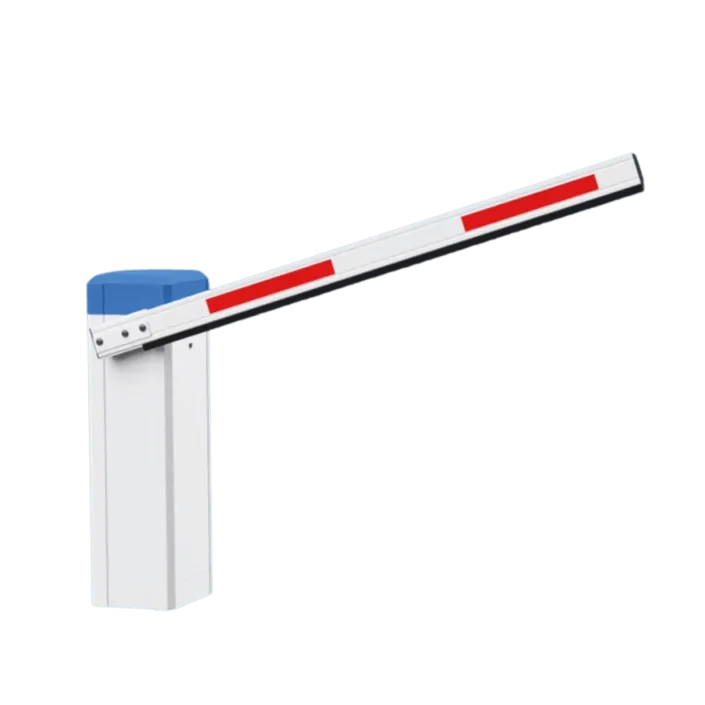
Confirm the exact device and supported command. Opening, closing, holding open, restarting hardware and restarting a service have different effects. Check duration units, end behavior and conflicting controls. Follow the installed equipment’s operating procedure and confirm the physical result where relevant. Do not assume an SSH or arbitrary command option exists.
Create a record
Confirm the supported record type, required values, associations and side effects such as messages or credentials. Determine what happens if the same task runs twice; a repeat can create a duplicate unless the operation explicitly prevents it.
Modify records
Verify the selected population and the exact fields or associations to change. Confirm whether an update adds to or replaces existing values. Preserve the evidence needed to check the result and recover according to the supported procedure.
Delete records
Review dependencies, retention requirements and recovery options for the specific record type. Deletion, deactivation and archiving are different operations. Do not assume a preview proves recoverability or that every deletion has identical effects.
Run other tasks
If task chaining is supported, check execution order, whether each child is awaited and what happens after failure. A chain is not proof of an all-or-nothing transaction. Avoid circular dependencies and check whether child tasks also have independent schedules.
Test selection logic before changing records
Use fields and operators actually offered for the selected record type. Verify field types, case sensitivity, date boundaries, missing values and AND/OR grouping. A label such as Between does not specify whether both endpoints are included.
The illustrative rule below selects records whose status is Inactive AND whose last-visit date is strictly before 2026-01-01. It uses complete calendar dates on the same time basis. A missing date is held for separate review rather than treated as an old visit. These examples define the intended selection, not Lexoh’s field names or missing-value behavior.
| Record values | Expected selection and reason |
|---|---|
| Inactive; last visit 2025-12-31 | Include: both conditions are true. |
| Active; last visit 2025-12-31 | Exclude: the status condition is false. |
| Inactive; last visit 2026-01-01 | Exclude: equal to the boundary is not strictly before it. |
| Inactive; last visit 2026-06-01 | Exclude: the date is after the boundary. |
| Inactive; last visit missing | Hold for review: the date condition cannot be verified from this record. |
Check both matches and non-matches
For the four complete-date records above, AND selects one record; replacing AND with OR selects all four. Test boundary and missing-value cases as well as a normal match. Compare record references, not just the total count.
Check preview scope and timing
If a simulation or preview is available, confirm that it does not perform the actual operation and which effects it covers. Data can change between preview and execution. Refresh the selection and verify the relevant configuration before a consequential run. An empty condition group must not be assumed to select no records.
Inspect each run before deciding to retry
Use a controlled sample or supported simulation to test the selection and expected effect. Confirm simulation limitations, including external commands, messages and chained tasks. If no suitable preview exists, arrange a bounded test with the responsible operator instead of assuming a Run Now control is a harmless test.
A manual run can perform the configured operation. Before launching it, verify the saved version, targets and whether another run is queued or active. A manual trigger may not replace the next scheduled occurrence.
Inspect the available run reference, requested time, start and finish times, status, counts and errors. Check which history and before/after details are actually retained. Distinguish selected, attempted, changed, skipped and failed items; zero changes can be expected when nothing matches.
Illustrative result: 12 selected records, 9 updated, 2 failed and 1 skipped. Those categories account for all 12 records, but the run is not a verified update of all 12. Inspect the failed and skipped records and confirm the nine changes before selecting a recovery action.
A failed run does not prove that no effects occurred or that completed changes were rolled back. Before retrying, determine whether it repeats the whole operation or only unresolved items. Repeating a creation, message or device command can duplicate an effect. Preserve the original error and run reference rather than repeatedly clicking Run Now.
Keep recurring work observable and maintainable
- Keep the task purpose, owner, targets, time zone, dependencies and expected outcome together. Distinguish required operator checks from features the application performs automatically.
- Enable recurring execution only after checking the selected records and the relevant result with a controlled run. Confirm what evidence and error notifications are available and who reviews them.
- Review runs after changes to permissions, fields, tags, device configuration, report definitions or email settings. Recheck the next occurrence after a schedule change.
- When a result is unexpected, preserve the run details and check for active or queued work before changing the definition. Suspending future scheduling does not establish that an in-progress action has stopped.
- Retire obsolete tasks together with their child-task references and independent schedules. Follow the supported cancellation and record-retention procedures; deleting a definition is not proof that its past effects or external messages were undone.