


Separate operator permissions from physical access
A Lexoh operator role groups permissions used to determine which application actions an assigned account may perform. Role settings can also include restrictions on the records or devices concerned. Review both the action and its scope; a role name alone does not define the resulting access.
An operator account, a customer profile and an access credential serve different purposes. Permission to view a door or issue a remote command does not by itself give the operator’s badge permission to enter. Successful sign-in also does not establish permission to use every feature.
Inspect the actual roles in the installation. Names such as Administrator, Operator or Technician may describe a job, but this guide does not establish their default permissions, protection from deletion or availability. Confirm the current settings before using or copying a role.
Create a role around a defined job
- List the required actions, records and sites with the responsible administrator. Name the role for its function and scope, such as Site A monitoring, and record who approves changes.
- Open role management from the configuration navigation available to your account. Inspect an existing role before deciding to reuse, copy or create one through the supported control.
- Select the available permissions needed for the job. Review viewing, creating, editing, deleting, exporting and commanding separately wherever the form distinguishes them. Do not infer one permission from another.
- If tag or company restrictions are offered, confirm which record types they apply to and how multiple selections combine. Check the meaning of an empty selection, untagged records, linked records and records belonging to another organization. A company association alone does not demonstrate tenant isolation.
- Save and reopen the role, compare the stored values with the approved requirements, and test with a designated account before wider assignment. Preserve a separately verified administrative recovery path during changes that could remove management access.
Review each operation and its scope
The following areas are a review checklist, not a complete list of Lexoh permission identifiers. Use the actual controls in your installation. Module availability, record restrictions and equipment capabilities can limit an operation even when an account has a relevant permission.
Accounts and roles
Distinguish viewing account details, creating or disabling accounts, assigning roles and changing role definitions. Check whether an account can modify its own privileges or those of more privileged accounts.
Doors, barriers and credentials
Separate viewing state and history from issuing equipment commands or managing badges, access schedules and credentials. A device-control permission does not establish that a command is supported or that the equipment completed it.
Video
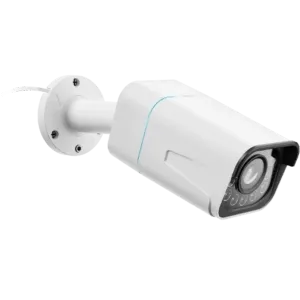
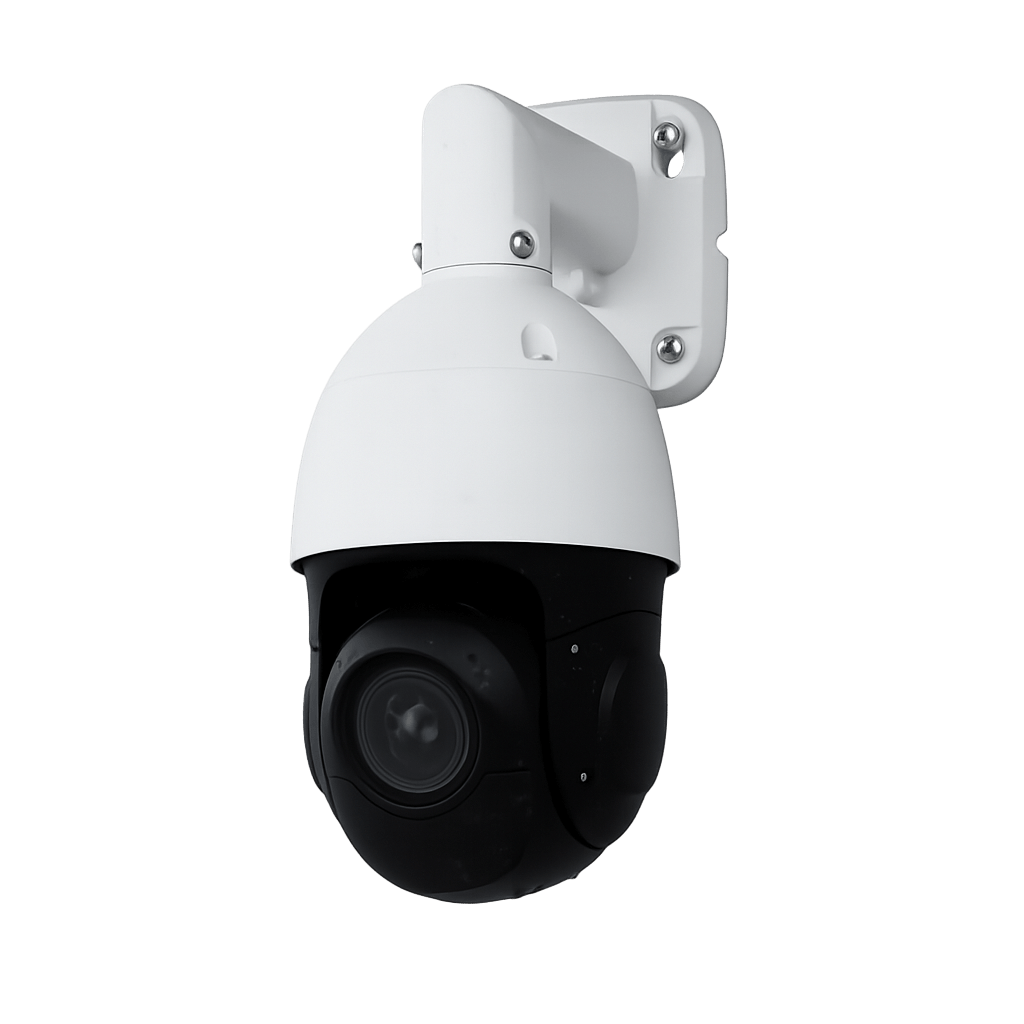
Review live view, recorded playback, export, camera configuration and pan/tilt/zoom control separately where available. Permission to view one camera does not establish access to every camera or recording.
Parking and transactions
Separate occupancy viewing, rate changes, transaction viewing, payment operations and report exports. Verify the exact available actions and scope; do not infer refund or settlement powers from a broad payments label.
Alerts and events
Distinguish reading an event, acknowledging an alert and editing detection or notification settings. An acknowledged alert does not demonstrate that its underlying condition is resolved.
Vehicles and customer records
Check viewing, creation, modification, deletion and export independently. Review related records, attachments and company scope rather than relying only on which items appear in the list.
Verify changes in both existing and new sessions
Before editing a role, identify its assigned accounts and any directory or sign-in mappings that reference it. Record the original settings and the expected changes. A shared role can affect more than the account used to test it.
Save the change, reopen the role and compare the stored permissions and restrictions. Check an existing session and a new sign-in with the designated test account. Do not promise immediate application or a universal need to sign in again; determine the actual session and permission-refresh behavior.
If access must be removed, follow the installation’s supported account and session-revocation procedure and verify the denied result. Refreshing a page or clearing a browser cache does not prove that other active sessions lost access. Role changes do not retrieve files already exported or undo earlier commands.
Assign the intended role to the correct account
- Open the operator account and verify its stable reference, sign-in identity and intended scope. Do not confuse the operator with a customer or access-card record sharing the same name.
- Check how role assignment works in the current form and whether a directory or single sign-on mapping manages it. Do not assume one-role-only support or assume that manual changes survive synchronization.
- Choose the approved assignment and save. Reopen the account to confirm the stored value and check any other assignments or restrictions that contribute to effective access.
- Use the designated test account to verify a required action and an excluded action within the relevant scope. Administrator success does not prove that the assigned operator can perform the same task. Keep physical equipment tests coordinated with site operations.
Use an explicit acceptance checklist
This illustrative Site A monitoring role is intended to view Site A status and events only. It should not command equipment, view Site B or administer accounts. These are proposed requirements for a test, not a preconfigured Lexoh role or a claim that every permission is independently configurable.
| Test with the assigned account | Required outcome for this example |
|---|---|
| View a designated Site A device and its events | Allow the intended read operation within Site A. |
| Issue an equipment command at Site A | Deny: the example role is for monitoring only. Test through an approved procedure without moving equipment unexpectedly. |
| Open a known Site B record through its normal detail link | Deny access to the record, even if the account can view similar records at Site A. Use a designated test record. |
| Open an available report or export containing Site B data | Exclude unauthorized Site B data or deny the operation, according to the approved design. A filtered list alone is insufficient evidence. |
| Change a user or role assignment | Deny: account and role administration are outside this example’s job. |
Record the result, not just the menu appearance
For each case, retain the tested account, role version, target reference, expected outcome, actual result and time. Verify both permitted work and denied work. If a required separation cannot be expressed with the available controls, revise the approved design with the administrator before rollout.
Maintain a reviewable permission model
Grant only the actions and scope needed for the job. Check authorization beyond menu visibility: hiding a control is not proof that access is denied. OWASP recommends least privilege and authorization checks for each request; these are general security principles, not certification of Lexoh’s implementation.
OWASP also recommends renewing session identifiers after privilege changes. Confirm the installed application’s session behavior with the responsible administrator and verify what happens to existing sessions.
Keep a role owner, purpose, approved scope and dated test record. Review assignments after personnel, site, company, tag or feature changes, and on a schedule appropriate to the organization. Choose the number of roles from actual duties rather than a universal three-to-eight target.
General guidance reviewed September 30, 2026: OWASP authorization guidance. OWASP session-management guidance.
Retire a role after checking its dependencies
- Identify assigned accounts and external mappings. Confirm the replacement requirements before reassigning anyone; do not use a broadly privileged role merely to remove a dependency.
- Test the replacement role with designated accounts and verify required work and excluded scope. Check that an authorized administrator retains management access.
- Inspect the actual deletion controls and any protected-role or assigned-user restrictions. Follow the supported procedure; do not assume all named default roles have the same protection in every installation.
- After retirement, verify account assignments, mapping references and effective access. Preserve the change record and history required by the organization. Recreating the same role name does not necessarily restore the original reference or assignments.
Locate the cause of an unexpected permission result
A required feature is missing
Check the saved role assignment, action permission, module availability and record scope. Compare with the intended job before changing permissions. Do not make the account an administrator just to bypass an unexplained denial.
A permission change appears ineffective
Confirm the saved role and account references, then compare existing and new sessions. Check supported refresh or revocation controls and any directory mapping. Preserve the result and available audit entries for the administrator.
The account sees too much
Record the unexpected operation and target using designated test data. Review tag/company combinations, empty restrictions, linked records, exports and other effective assignments. Escalate the discrepancy before expanding the role’s use.
The role cannot be deleted
Inspect the application’s explanation, dependent accounts, mappings and protected-role rules. Reassignment is a configuration change requiring its own permission checks, not a reason to grant unrestricted access.