

Choose the view for the task
Lexoh camera views support operators reviewing video from connected equipment. Start with the task: observe a current scene, retrieve a recorded period or investigate a detection. The views and controls available depend on the camera, recorder, integration, application version and account permissions.
A working live image does not establish that recording is active or that earlier footage remains available. Likewise, an event thumbnail does not establish that a playable clip was retained. Verify each part of the viewing and recording path separately.
| Task | What to verify |
|---|---|
| Observe the scene now | Correct camera and location, advancing image and timestamp, and any delay or connection warning. |
| Review an earlier period | Correct recording source, date, time zone and available coverage before and after the relevant moment. |
| Investigate a detection | Source camera, event time, label and associated image or clip. Confirm the interpretation by reviewing the scene. |
| Preserve a segment | Authorized export, correct camera and interval, playable output, and a record of who exported it and when. |
Confirm the camera and account scope
- Open the camera area with an authorized account and select the intended site or organization.
- Confirm the camera name, stable device reference and physical view. Similar names or a changed mounting position can cause an operator to inspect the wrong scene.
- Identify the available live, recording and event views. Your version may use a recorder-specific label such as NVR, meaning network video recorder.
- Check access to the required camera and action. A missing view can reflect configuration, permissions or a connection problem; it does not prove that no recordings exist.
- If access is refused, record the message and ask the administrator to review the account’s assigned scope. Keep access changes separate from the incident investigation.
Check the live image before relying on it
Open one camera first. Confirm that the image advances and that the displayed time corresponds to the expected scene. A frozen last frame can resemble a quiet live view. Check connection indicators and compare an observable change through the site’s approved verification method.
Choose a layout available in your version that leaves enough detail for the task. More camera tiles reduce the size of each view and can increase the viewing workload. This guide does not prescribe a universal grid size or promise a fixed number of simultaneous streams.
Use available camera-selection, enlargement or full-screen controls to inspect details. Where pinning or automatic rotation is supported, verify which cameras remain visible and which cycle out. Rotation leaves intervals when a view is off-screen; it does not replace an assigned monitoring or response procedure.
If viewing becomes slow, compare one stream with the larger layout and record the difference. Reduce the viewing load before requesting changes to camera or recorder settings. Changing a display layout should not be treated as confirmation that recording settings changed.
Find and verify recorded footage
Recorded video may be provided through an integrated recorder interface or another configured playback route. Confirm the route used at your site and the account required. Live access alone does not establish permission to replay or export footage.
An NVR stores and manages network video according to its configuration. The available controls and retained periods depend on the recording system; this guide does not promise a complete embedded recorder interface or universal playback functions.
- Select the source camera and enter an explicit date and time. Record the displayed time zone and any known clock difference before comparing footage with an access event.
- Start before the reported moment and review beyond it. Confirm that the footage covers the relevant interval and note gaps or discontinuities.
- Use the playback controls actually available. Distinguish paused, accelerated and live modes, and return to a suitable playback speed before judging the sequence of events.
- If footage is missing, check the camera, time zone, recording schedule, storage status, retention and account scope with the administrator. An empty timeline does not identify the cause by itself.
- For an authorized export, select the required interval and format offered by the system. Open the resulting file and verify the camera, start and end, playback and any required viewer.
- Preserve the original export and record its source, time zone, interval and export time. Keep annotations or edited copies separate and follow the site’s sharing and retention procedure.
Treat detections as leads for review
Camera events report conditions detected by the configured analytics or connected service. Labels, thumbnails, scores, summaries and links vary by integration. Use the source reference and time to find the relevant scene rather than assuming every event includes a clip.
Where a confidence score is displayed, read the integration’s definition. A score such as 88% should not be interpreted as a measured 88% accuracy rate or an 88% probability that an incident occurred without validation for that use. A detection label does not establish identity, intent or authorization.
If an automated summary is available, compare it with the original footage and keep observed facts separate from its interpretation. Confirm any association with a parking entry or access record using the relevant references and timestamps.
Apply the available camera, date and label filters one at a time. Check the time zone and search scope with a known event. An empty filtered list does not establish that no activity occurred; the detector may not cover that activity or the record may be outside the selected scope.
Review missed detections as well as unwanted ones when assessing a rule. Changing a confidence threshold changes which results are included; verify its effect using representative site observations before adopting it.
Use controls supported by the installed equipment
Before changing stream quality, frame rate, recording schedules or analytic regions, establish which viewing, recording and detection functions share that setting. Keep the existing value and verify affected functions after an approved change.
Pan, tilt and zoom
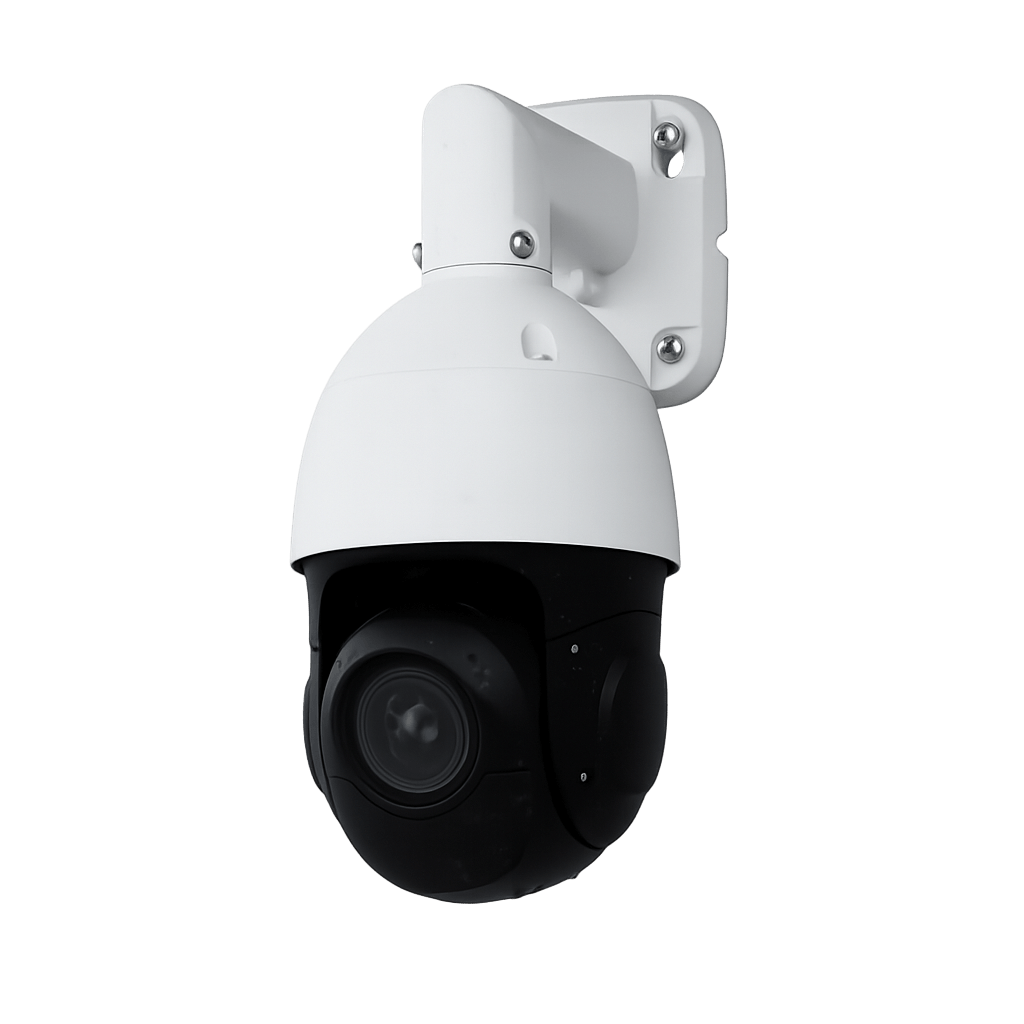
PTZ means pan, tilt and zoom. Physical movement requires suitable equipment, a supported control path and authorization. Confirm the selected camera before moving it and restore the approved view afterward. Enlarging an image digitally does not establish that the camera moved or that additional scene detail was captured.
Audio
Check whether the camera, integration and account support the intended audio function. Listening, microphone capture and talkback are different functions. Use only the audio functions approved for the site; an unmuted player does not prove sound was recorded.
Layouts and mobile use
Use the controls visible in your application version. Do not rely on undocumented double-click, swipe or drag behavior. On a small screen, inspect one camera when detail matters and confirm that the controls are reachable before using the view operationally.
Verify permissions across the viewing path
Have the administrator verify the intended camera scope for live viewing, playback, event review, export and physical controls. These are distinct actions. Check each through the actual integration rather than assuming that access to one view grants or restricts every other action.
If a separate recorder interface or account is involved, verify its permissions as well. A hidden tab or camera tile is not sufficient evidence that access is enforced across the recording and export paths.
Distinguish restricting access to a camera from masking part of its image. If a privacy mask is required by the site, check the relevant live view, recording, thumbnail and export separately. A mask visible in one output does not establish that every output is masked.
Review access after role or staffing changes. Where audit records are available, check which viewing, export or control actions they actually record. Permissions are one part of the site’s video procedures and do not by themselves establish compliance.
Isolate the affected stage
For support, include the site, camera reference, application version, browser or device, exact error, time zone and affected interval. Describe what works as well as what fails. Share only the relevant authorized excerpt through the approved support channel.
Camera missing or access refused
Confirm account, site, device reference and configured integration. Preserve the exact message for an authorized administrator.
Live image blank or frozen
Check whether one or several cameras are affected, whether timestamps advance, and whether a connection error appears. Compare device status with the viewing path; an online device does not prove that its stream is playable.
Image lacks useful detail
Compare the live and recorded views. Examine the selected stream, scene lighting, focus, obstruction and motion conditions with the responsible technician. Enlarging a small tile cannot recover detail absent from the source image.
Live works but playback fails
Verify recording coverage, selected source, time zone, storage status, playback permissions and the supported player. Do not infer a recording failure solely from a browser playback error.
Event exists but clip is unavailable
Check the event time against retained recordings, the camera mapping and clip permissions. Event metadata and video can follow different retention or retrieval paths.
Export will not play
Verify the export completed, identify the offered format and required player, and test the original file through the approved workflow. Keep the original instead of repeatedly replacing it with converted copies.
Keep viewing and recording checks current
- At the site’s chosen review interval, verify representative live images, recording retrieval and an authorized sample export. Record each result separately.
- Confirm the scene still matches the intended task after camera movement, maintenance or a change in lighting or obstruction.
- Check time alignment before correlating video with access, parking or alert records. Keep known offsets with the investigation.
- Assign responsibility for storage, retention, access review and incident follow-up. An automatic display or detection rule does not assign an operator response.
- Repeat affected checks after changes to equipment, integration, software or account permissions. Keep unresolved gaps visible in the service record.